Table of Contents
How to Switch Languages When Taking the Stress Check

How to Switch Languages When Taking the Stress Check
- If you are taking the stress check via the test URL provided in the email, or after logging into your employee account, please use this language switching method.
- If you are taking the test using a shared URL or QR code, you can switch languages directly on the authentication screen.
How to Configure Chrome
① Click the three-dot menu icon in the upper-right corner of the screen.
② Select "Settings" from the menu.
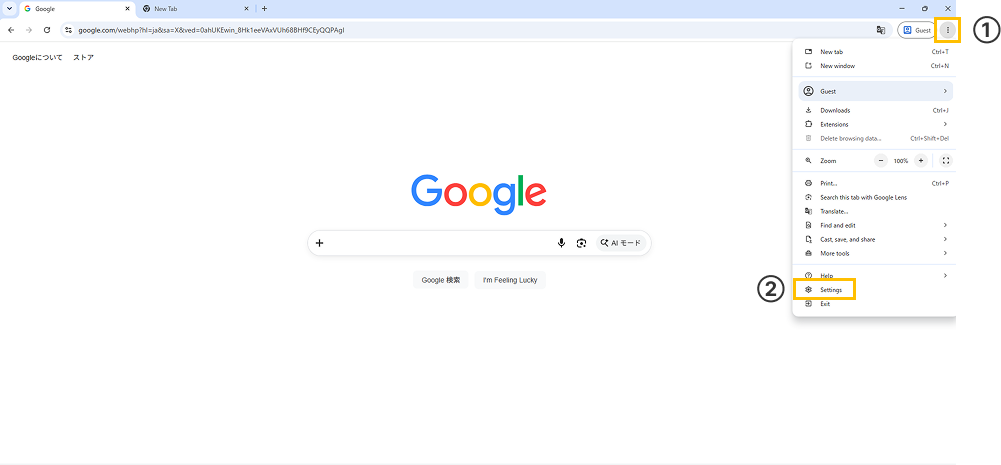
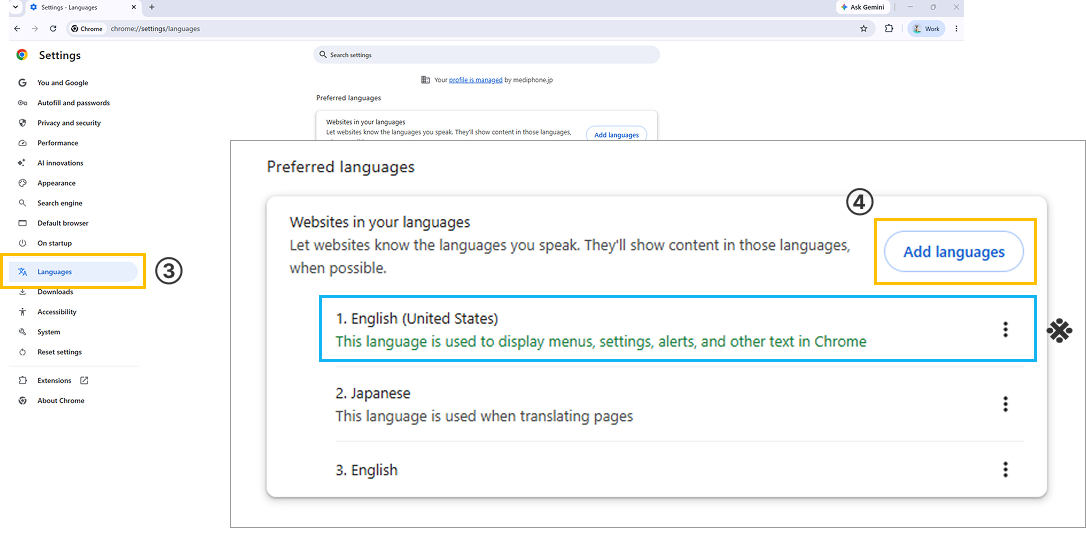
③ Open the language settings. Select "Languages" from the left menu in the settings screen, and the currently configured languages will be displayed (*the area outlined in blue in the image).
④ Click the "Add languages" button.
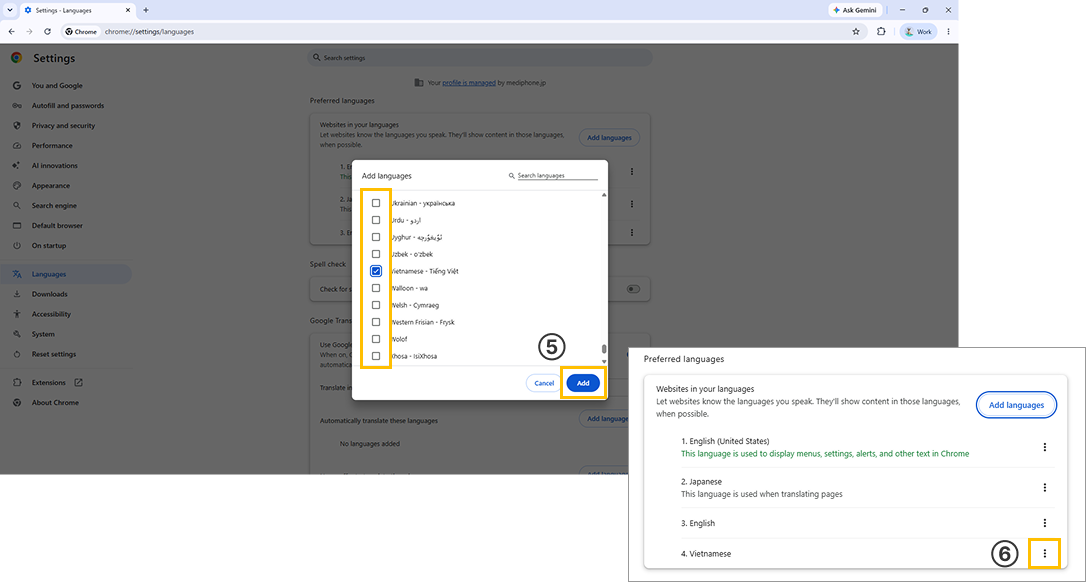
⑤ When the "Add languages" pop-up appears, check the language you want to use and click the "Add" button.
⑥ Click the three-dot menu icon next to the added language.
⑦ Select "Display Google Chrome in this language".
⑧ Click the "Relaunch" button next to the selected language.
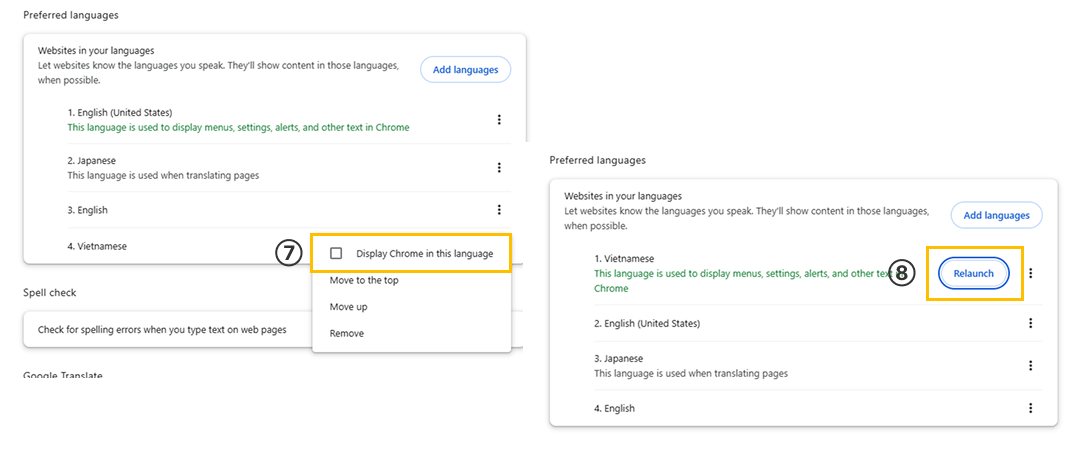
Once the browser restarts and displays in your selected language as shown below, the change is complete.
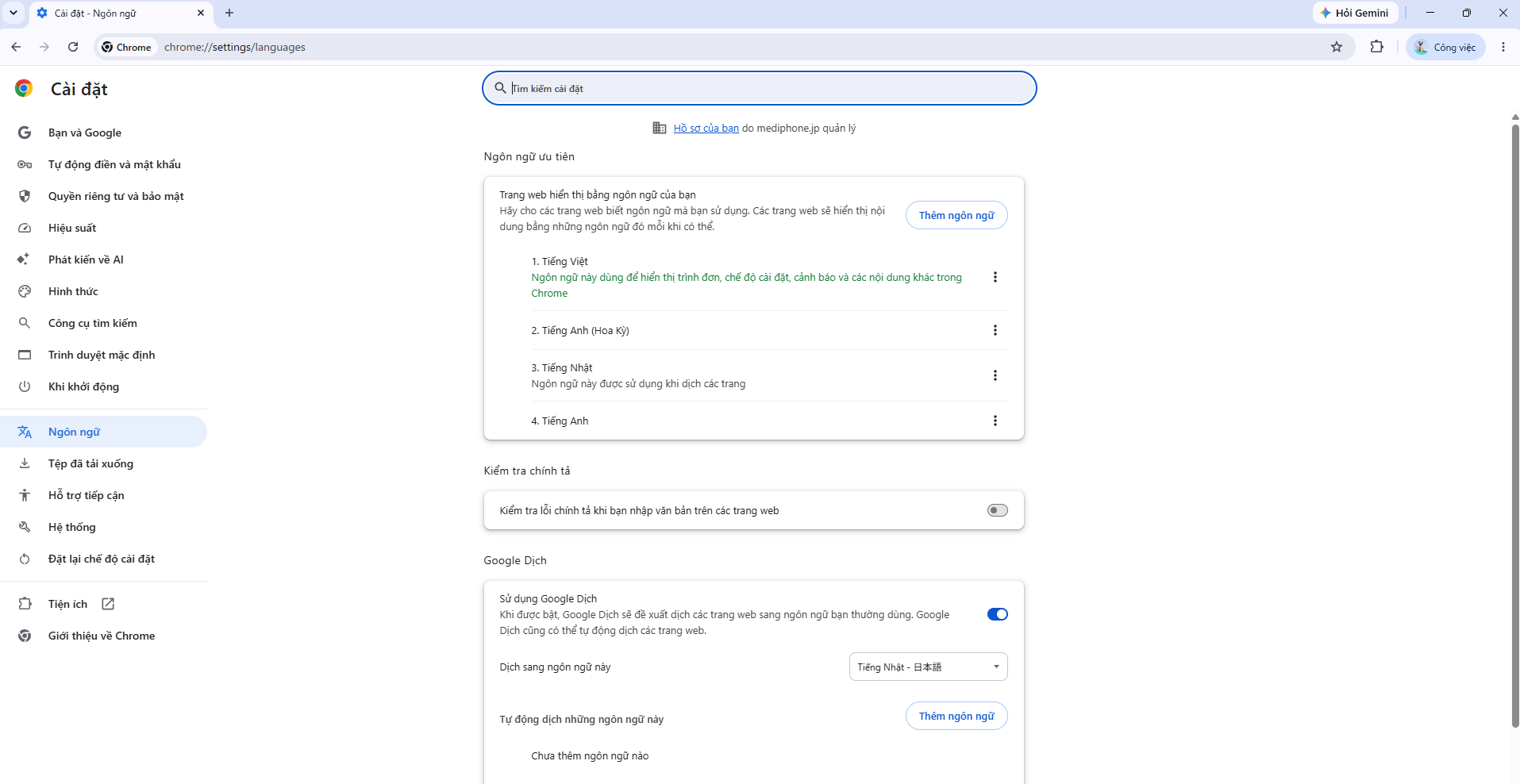
Please ensure the screen is in this state before starting your stress check.
How to Configure Microsoft Edge
① Click the three-dot menu icon in the upper-right corner of the screen.
② Select "Settings" from the menu.
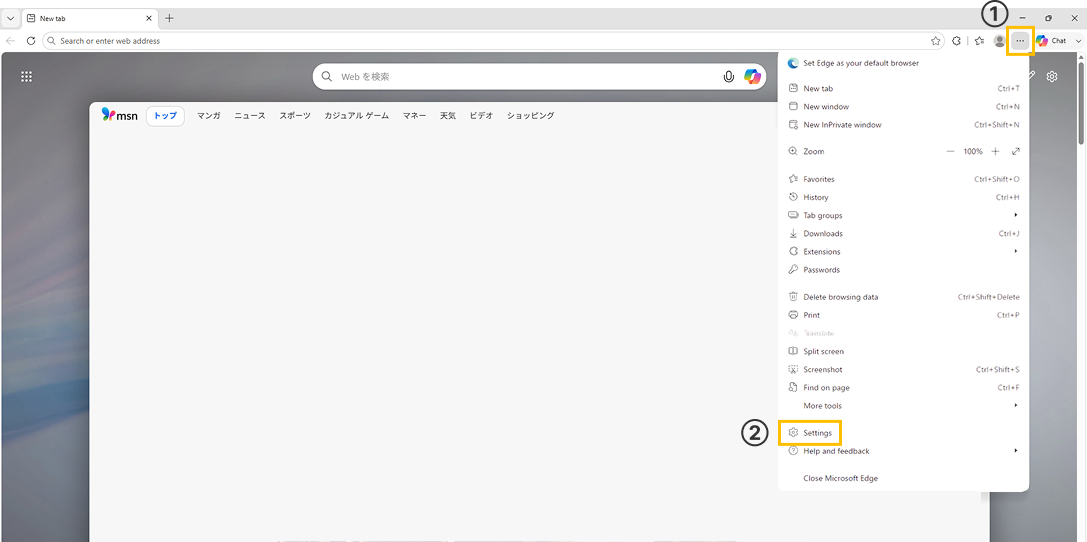
③ Open the language settings. Select "Languages" from the left menu in the settings screen, and the currently configured languages will be displayed (*the area outlined in blue in the image).
④ Click the "Add languages" button.
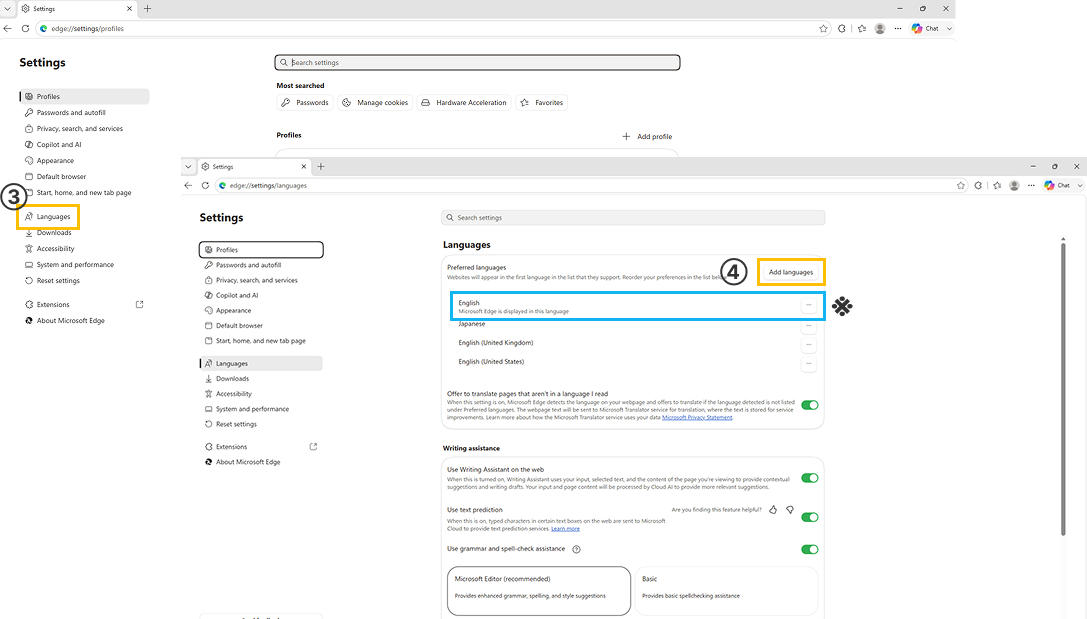
⑤ When the "Add languages" pop-up appears, check the language you want to use and click the "Add" button.
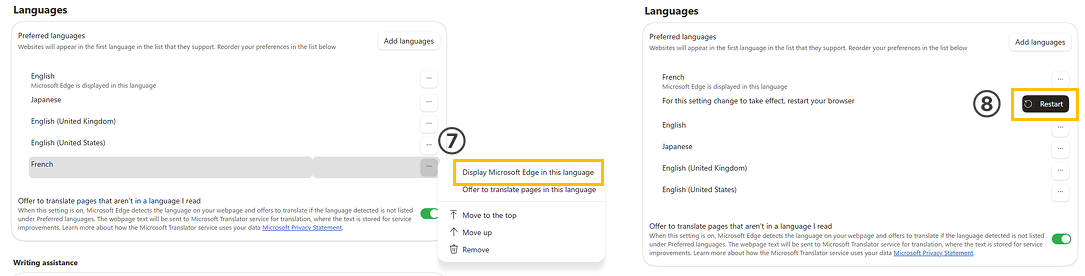
⑥ Click the three-dot menu icon next to the added language.
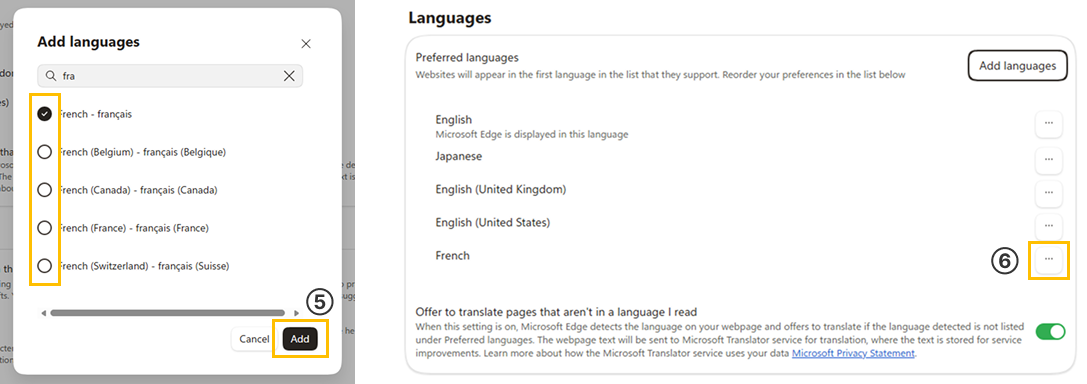
⑦ Select "Display Microsoft Edge in this language".
⑧ Click the "Relaunch" button next to the selected language.
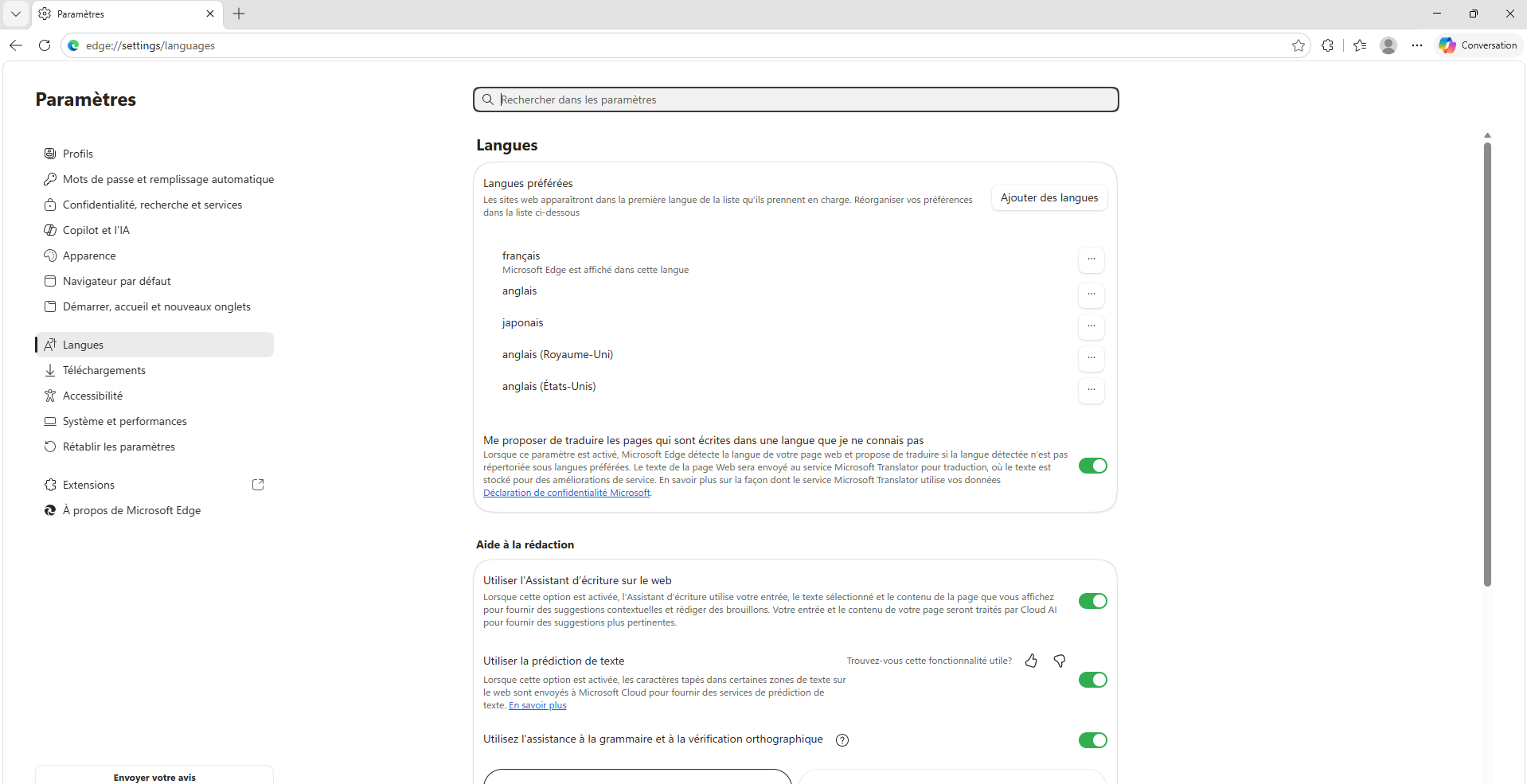
Once the browser restarts and displays in your selected language as shown below, the change is complete.
How to Configure iPhone / iPad
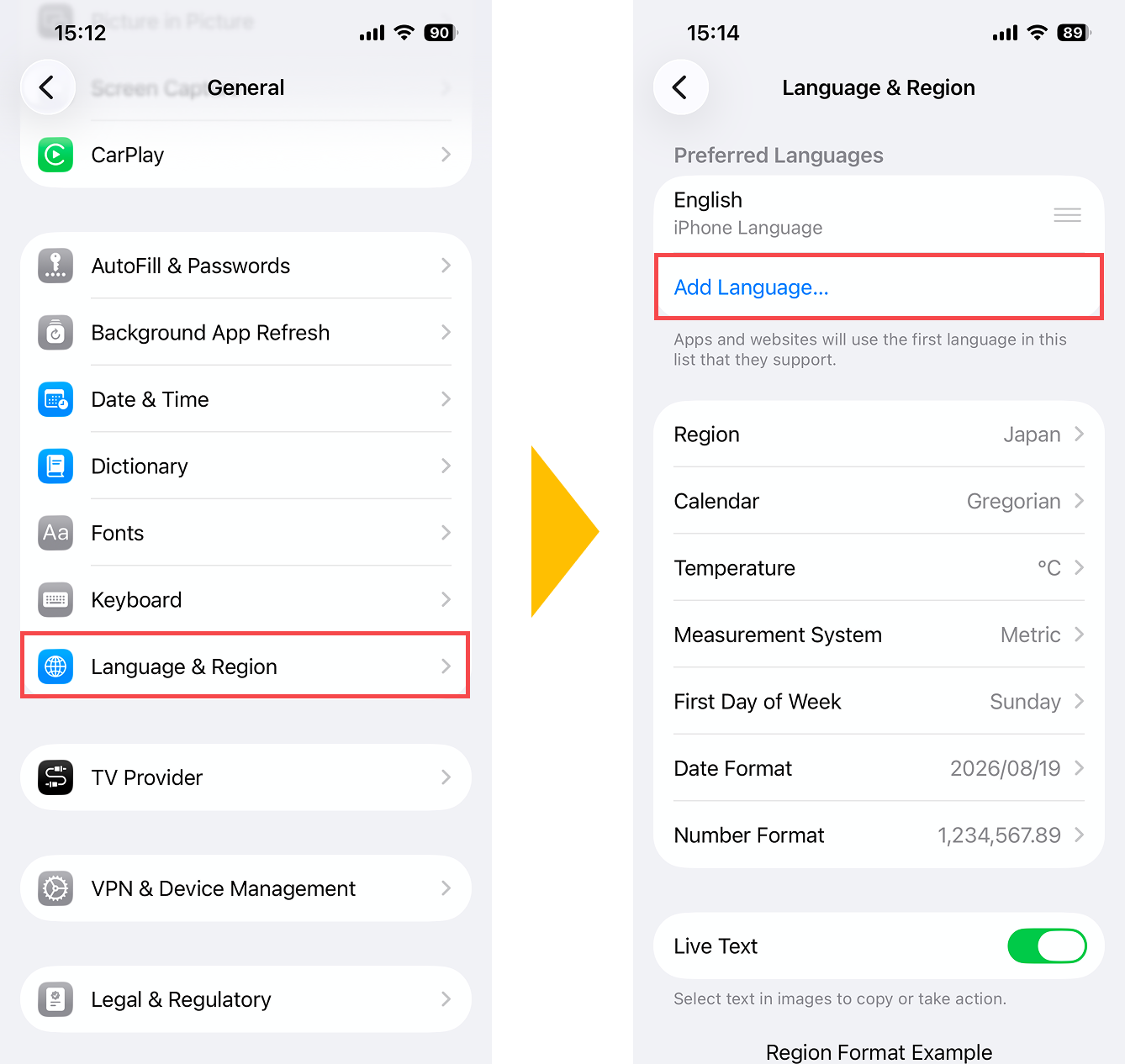
② Tap "General".
③ Select "Language & Region".
④ Select "Add Language".
⑤ Select the language.
⑥ Choose the primary language.
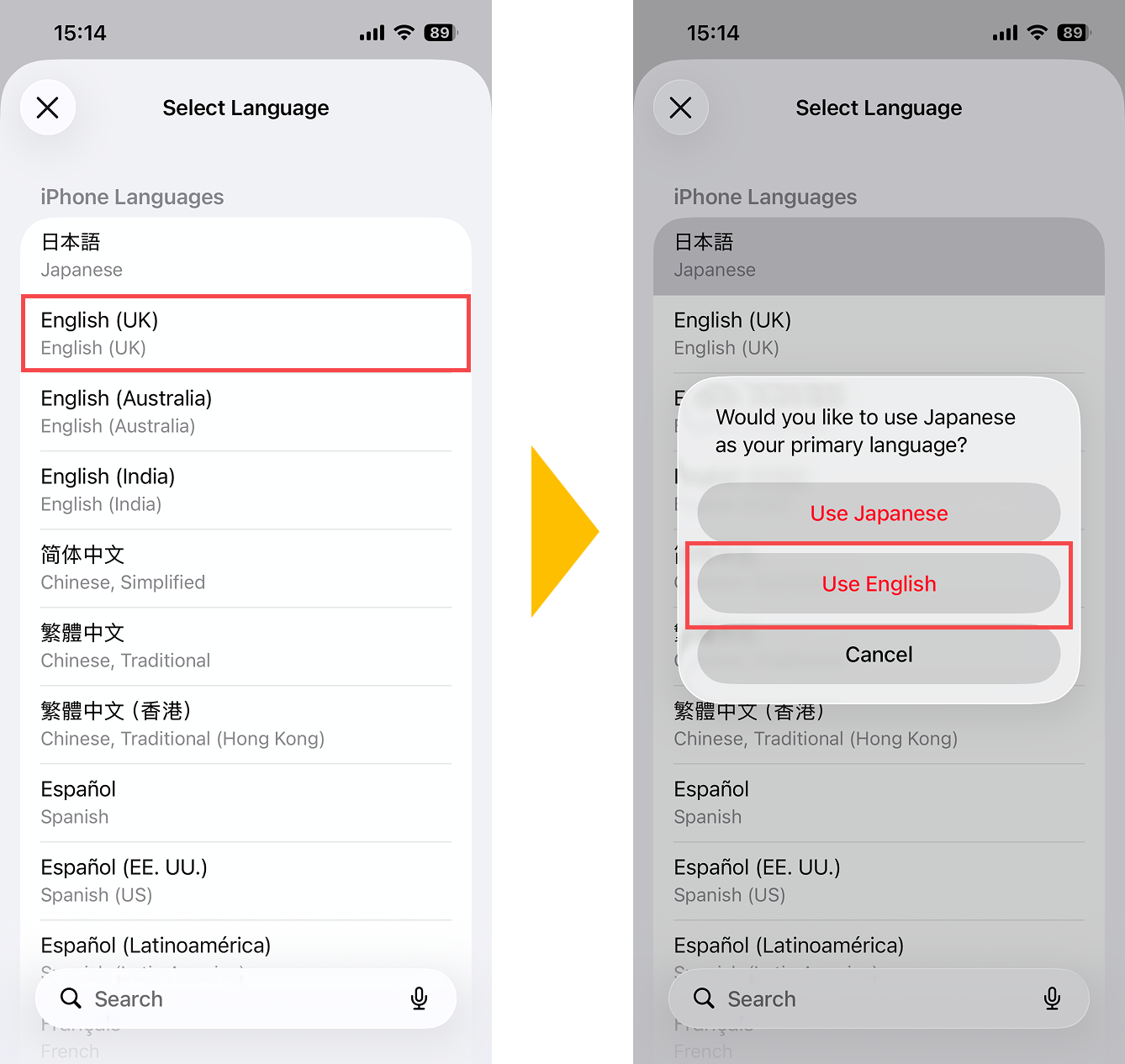
A notification message will appear asking you to confirm which language you wish to set as the primary language.
Once the language is updated on the device, it will automatically be displayed in your chosen language.
この記事は役に立ちましたか?
それは素晴らしい!
フィードバックありがとうございます
お役に立てず申し訳ございません!
フィードバックありがとうございます
フィードバックを送信しました
記事の改善におけるご協力ありがとうございます。